



Meeting Manager 100 Pro
- Category: Task Planners
- Platform: Microsoft Excel
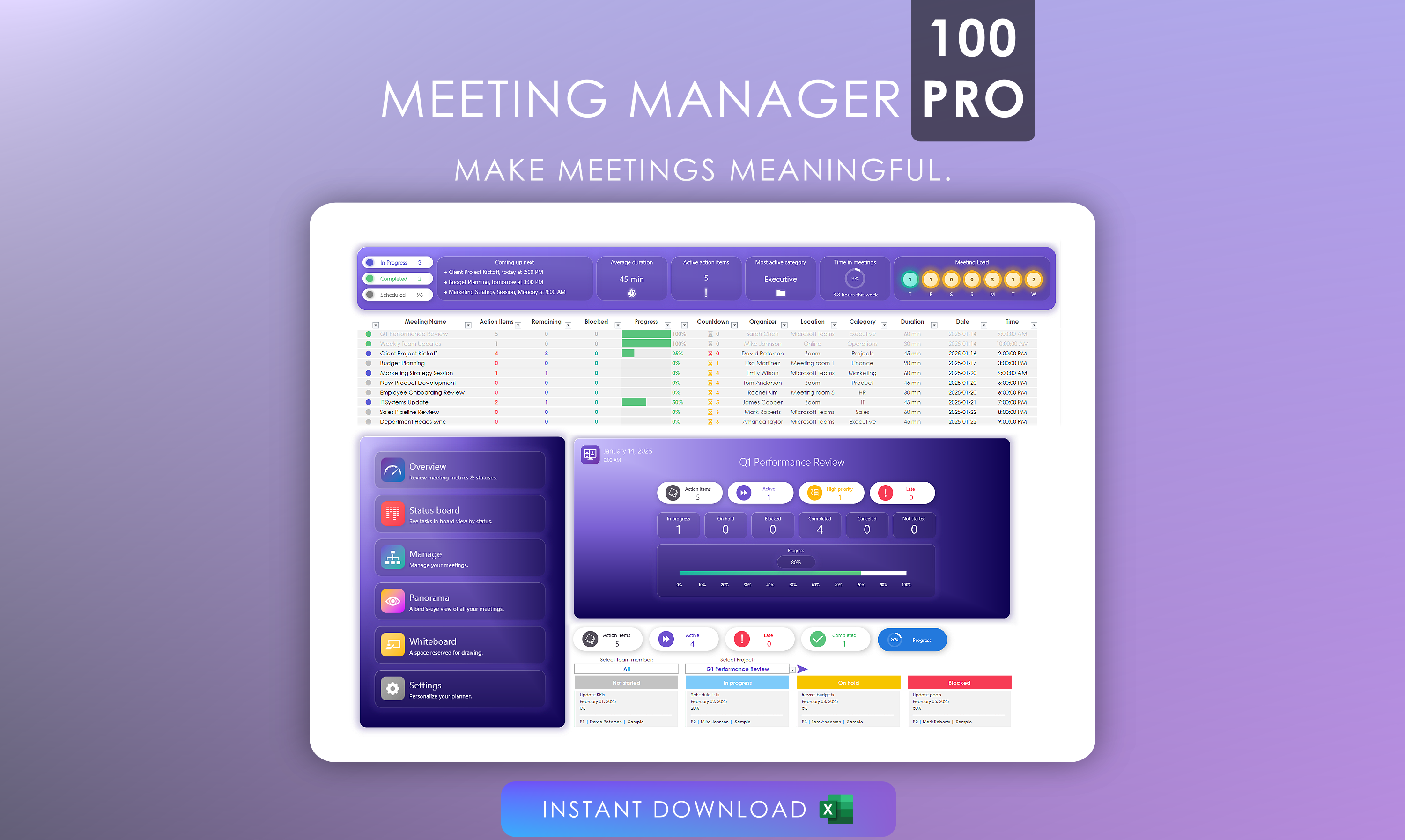
- Description: Plan & organize up to 100 meetings in one powerful, intuitive interface for Microsoft Excel. Meeting Manager 100 Pro transforms how you handle meetings, making them more efficient and purposeful. Capture detailed notes and stay focused on meeting objectives to ensure productive outcomes. Track and assign action items to participants, and monitor completion rates with ease. Set durations, locations, and meeting categories while keeping everything organized in a beautiful, modern interface.
Features
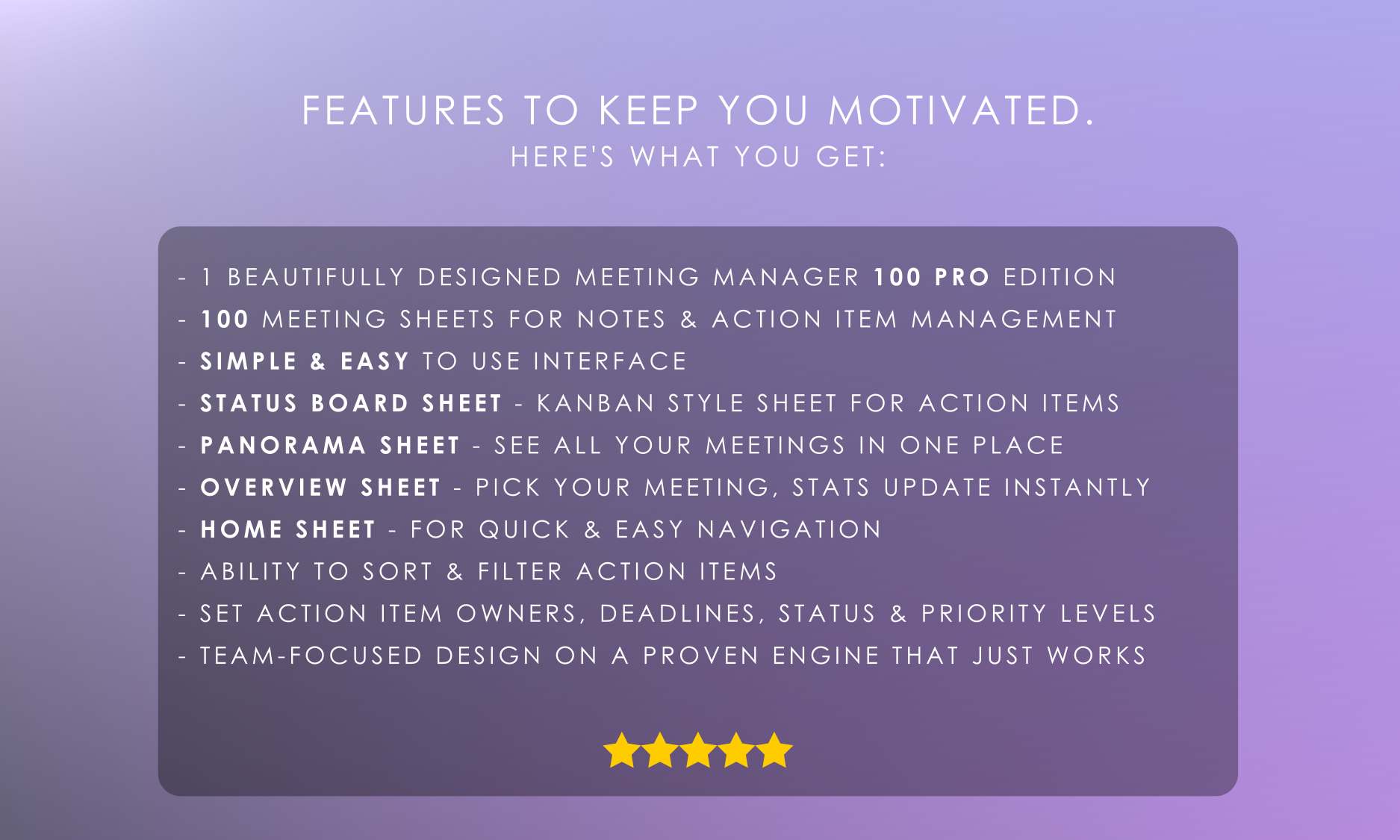
✔️ Panorama: A comprehensive Meeting Dashboard
✔️ Status Board: Visual Kanban for action items and assignees
✔️ Action Item Tracking with priorities (P1-P4) and deadlines
✔️ Progress Tracking with Visual Indicators
✔️ Whiteboard
✔️ Customizable Settings
💼 Perfect for:
⭐️ Client consultations
⭐️ Team updates
⭐️ Board meetings
⭐️ Project kickoffs
and more!
Get started with your planner
Learn how to get the most out of your new planner
Configure the Settings sheet
Select the ‘Settings’ sheet and enter the following information:
- Team: List all possible meeting participants.
- Status: You may rename one or more of the default statuses.
- Priority: You may rename one or more of the default priorities.
- Status board options: Adjust Status Board preference options to your liking.
- Status board card: If you rename column header names on your meeting sheets, update the names here as well.
- Locations: List all possible physical and virtual locations.
- Category: List all possible meeting categories.
- Meeting durations: List all possible meeting durations, respecting the format "xx min".
Configure the Manage sheet
The Manage sheet is where you'll schedule your meetings. Specify a meeting name, along with a date, time and other relevant information related to the meeting.
During the meeting
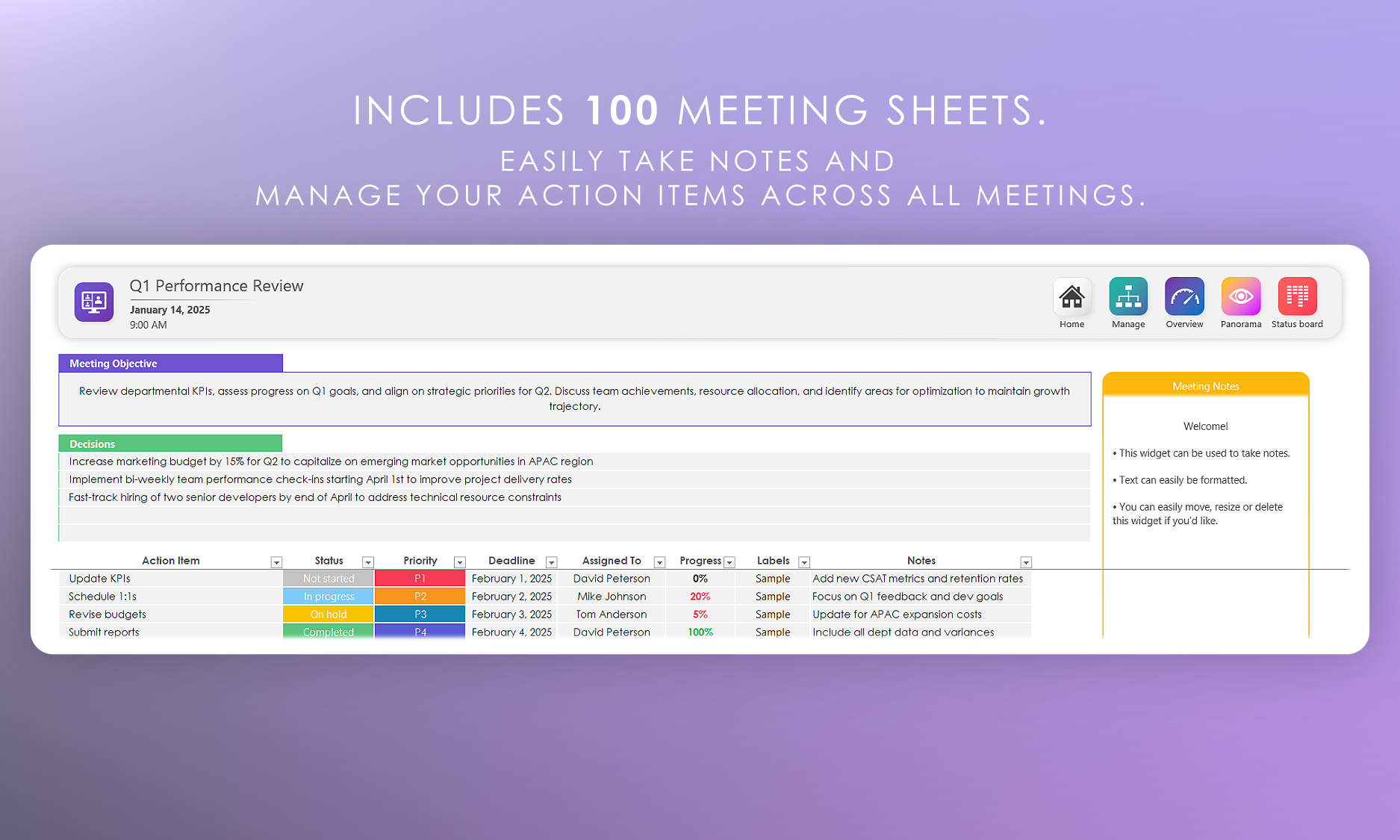
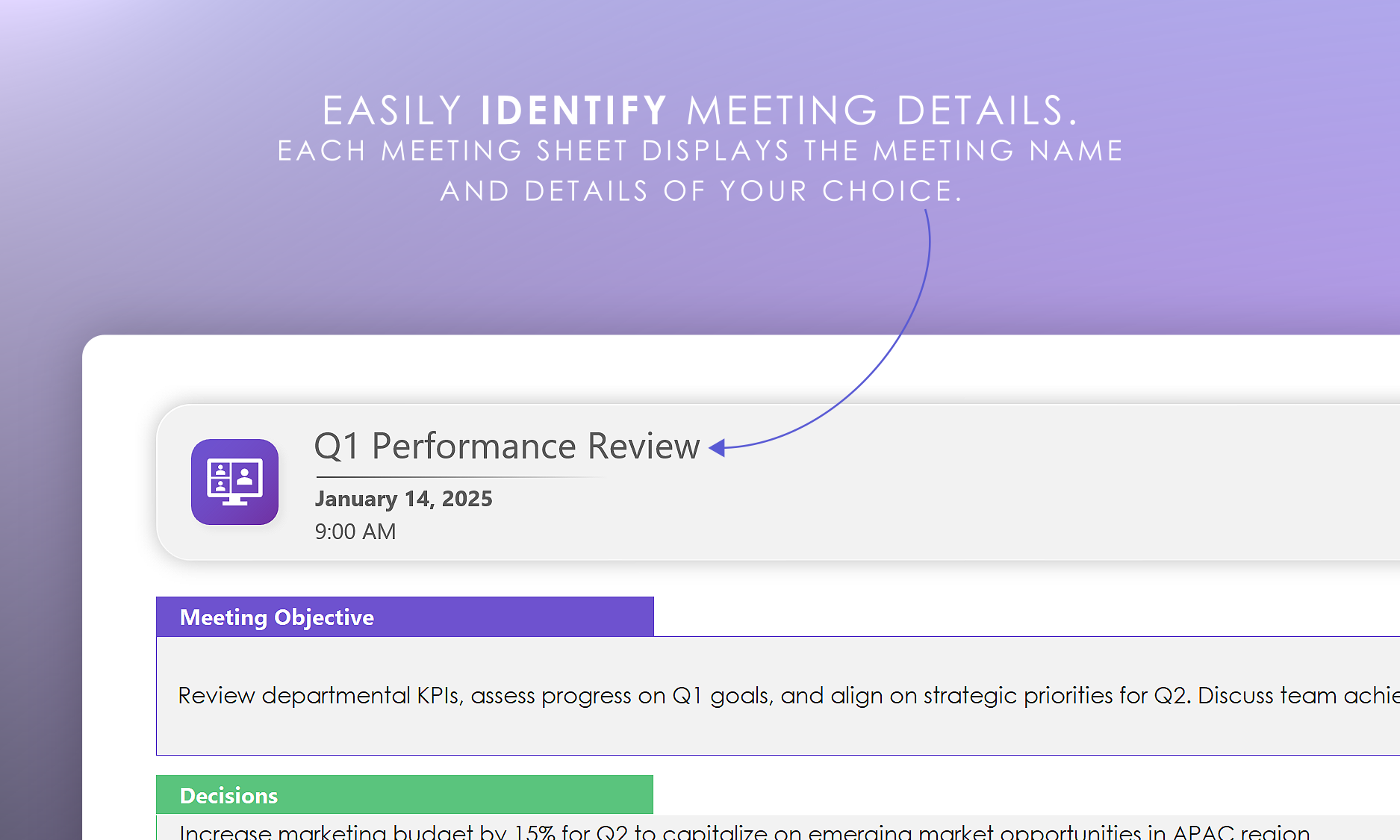
100 meeting sheets allow you to manage action items and notes.
- Meeting Objective: Clearly describe the objective(s) for this meeting.
- Decisions: When decisions are made during the meeting, list them here.
- Action Item: Describe the action item.
- Status: Select a status from the drop down list.
- Priority: Select a priority from the dropdown menu. (P1 = Most urgent, P4 = Least urgent)
- Deadline: Enter the date which this action item should be completed by.
- Assigned To: Choose a team member from the drop-down list.
- Progress: Enter a value between 0 and 100, which represents completion progress.
- Notes: Feel free to leave a note or comment for this action item (optional).
🟢 Tip: All dates must be entered in the following format: January 1, 2023
🟢 Tip: Progress percentage is automatically color coded.
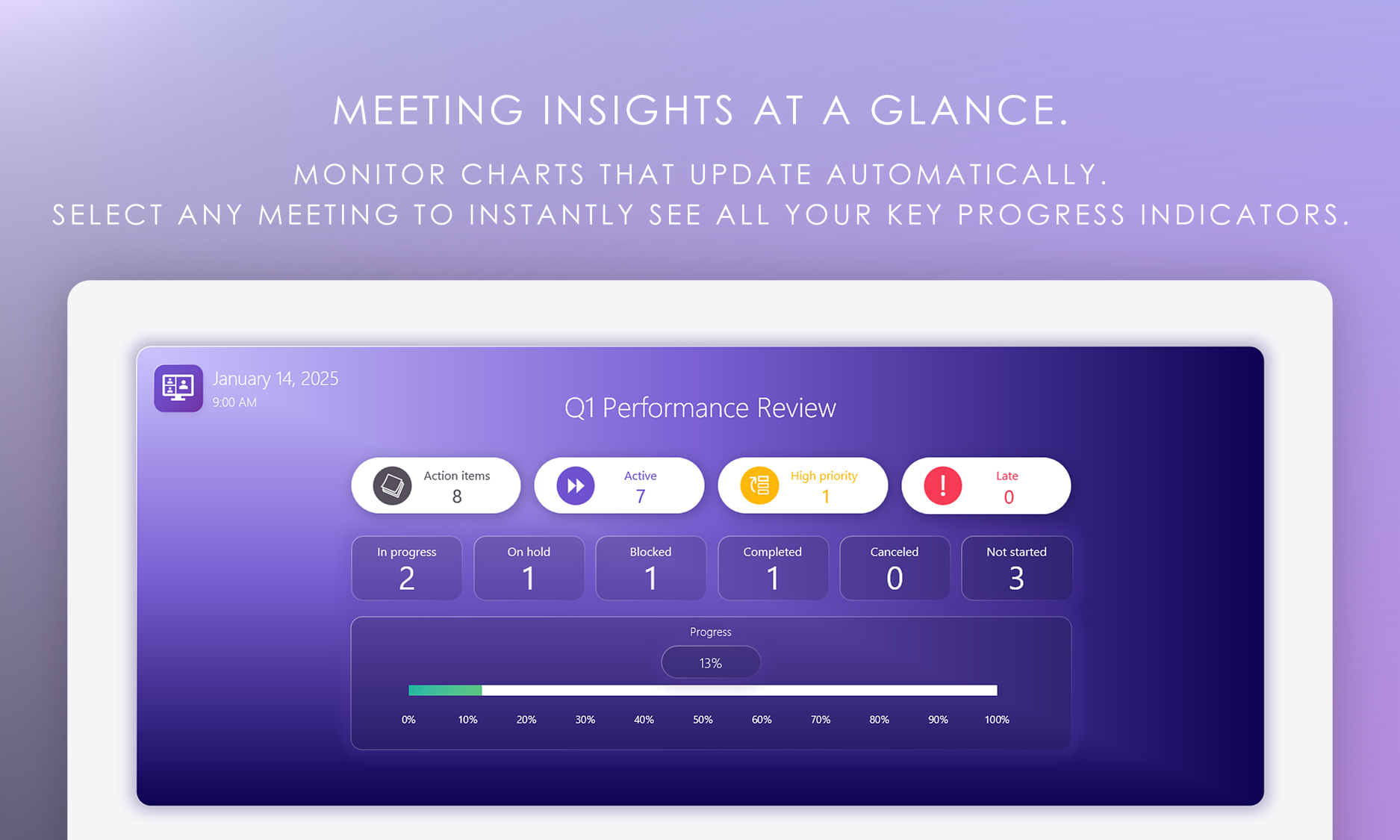
The Overview sheet
This sheet allows you to review meeting metrics & statuses at a glance.
Sselect a Meeting from the drop-down lists and the dashboard updates instantly.
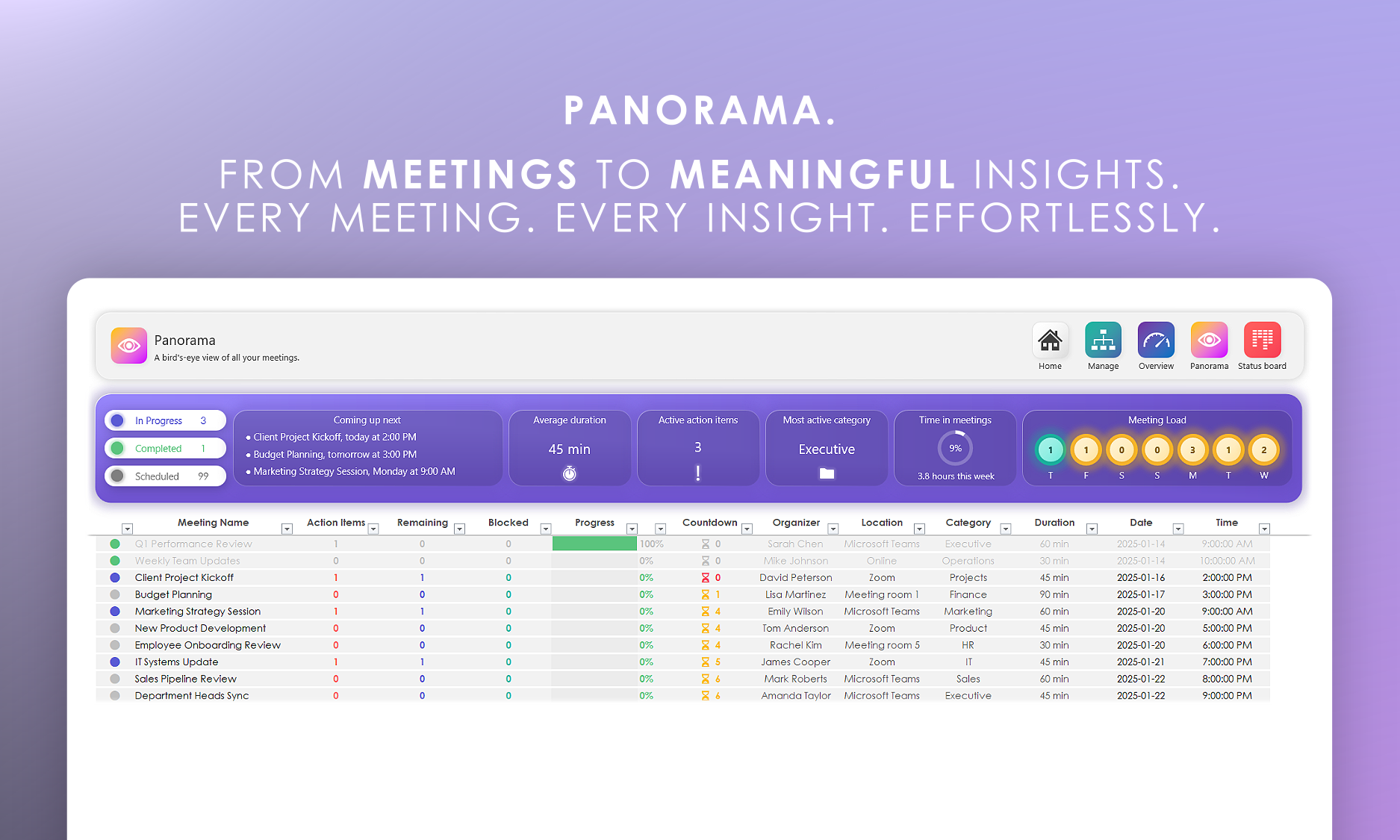
The Panorama sheet
The Panorama sheet provides a comprehensive overview of all your meetings at a glance.
See key metrics and vital information about your meetings:
- Total number of meetings and their status (Scheduled, In Progress, and Completed)
- Efficiency metrics showing meeting completion rates and progress
- Recent meetings that require your attention
- Upcoming meetings that are scheduled
- Quick links to jump directly to specific meetings
- Meeting category distribution
- Action items requiring follow-up
The Status Board sheet
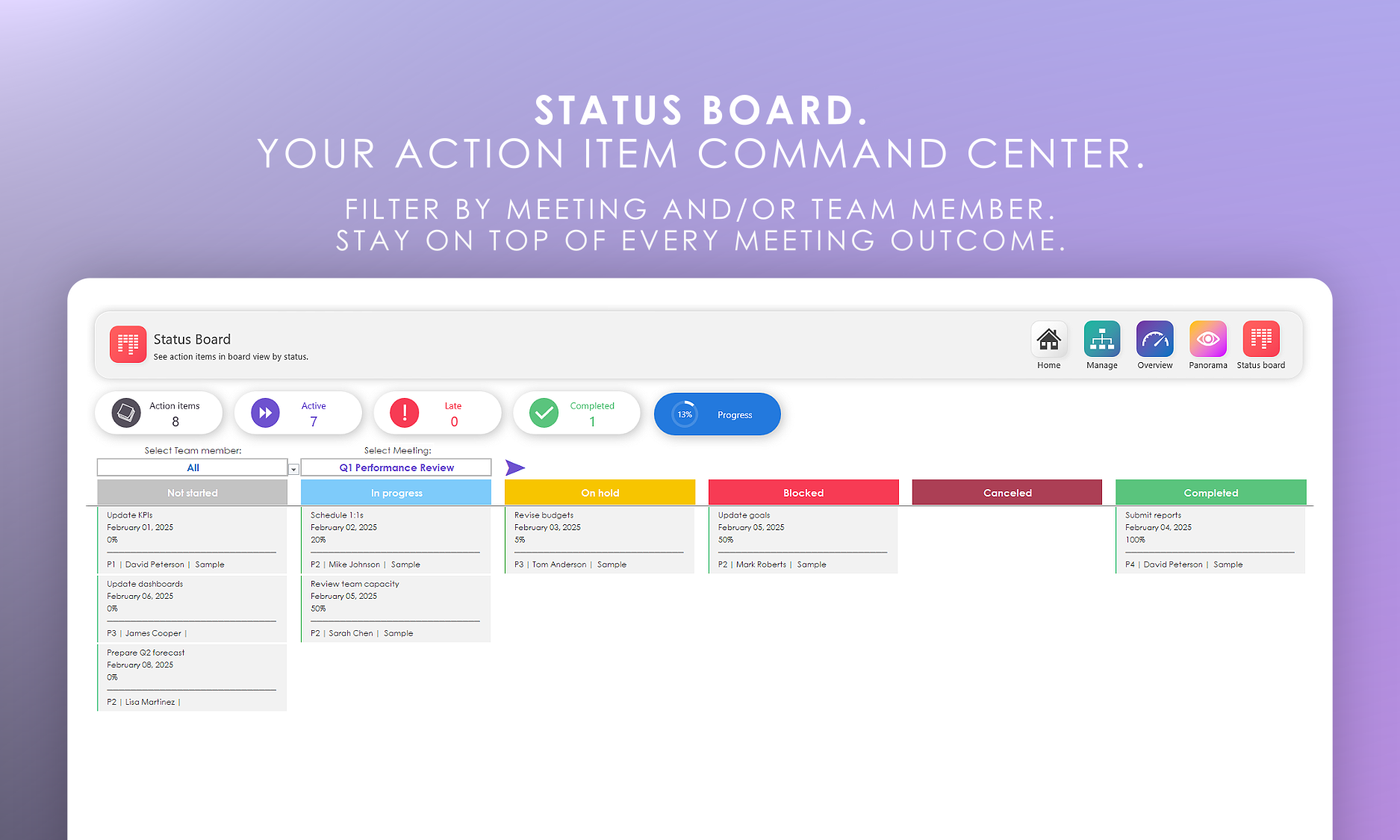
The Status Board sheet is a Kanban-style board that organizes and tracks all action items for your meetings. This interactive interface features:
- A meeting selector dropdown to choose which meeting's action items to display
- A team member filter to focus on specific individuals' action items
- Six status columns for action item tracking
- The top section includes informative widgets
- Track the status of all action items from a specific meeting
- Filter action items by team member
- Quickly identify bottlenecks or blocked items
- Monitor overall progress and completion rates
- Manage workflow transitions as items move through different stages
-
How can I edit the dashboard on the Overview sheet?
The Overview sheet is protected by default in order to prevent accidental changes.
To edit it, you must unprotect the sheet by clicking the 'Review' tab and clicking 'Unprotect sheet'.
-
How can I change the Status or Priority colors?
1. Ensure you have a meeting Sheet selected (such as meeting 1).
2. Click the Home tab, click 'Conditional Formatting' and select 'Manage Rules...'
3. Double click on a color which you would like to change.
4. Click the 'Format...' button.
5. Click the 'Fill' tab.
6. Select the color of your choice.
7. Click OK on all open dialogs.
8. Repeat the steps above for each meeting sheet.
-
Can I filter my action items so that I only see those for a specific status, or priority?
Yes, you can easily apply filters on any of the ‘meeting’ sheets.
Simply click the Filter button at the top of the desired column and check or un-check any of the available checkboxes.
-
Can I sort my action items by category, status, priority, or any other data type?
Yes, simply click the ‘Filter button’ at the top of the column and select “Sort A to Z”.
-
How should I delete a action item?
You may highlight any cell that you would like to clear and hit the Delete key on your keyboard.
-
I’ve reached 100 action items; how can I add more rows?
Your planner comes with 100 blank rows; however, you can add more by right clicking the last row and selecting “Insert -> Table Row Below”
-
How can I contact Bobcat Planners?
Contact us via the Bobcat Planners Etsy shop any time!